
Web Filtering & Safe Search for Android
KidzControl blocks adult and unsafe websites across browsers, keeps SafeSearch and YouTube Restricted Mode locked on, and lets you block apps directly from your phone.
7-Day Free Trial • No Credit Card Required
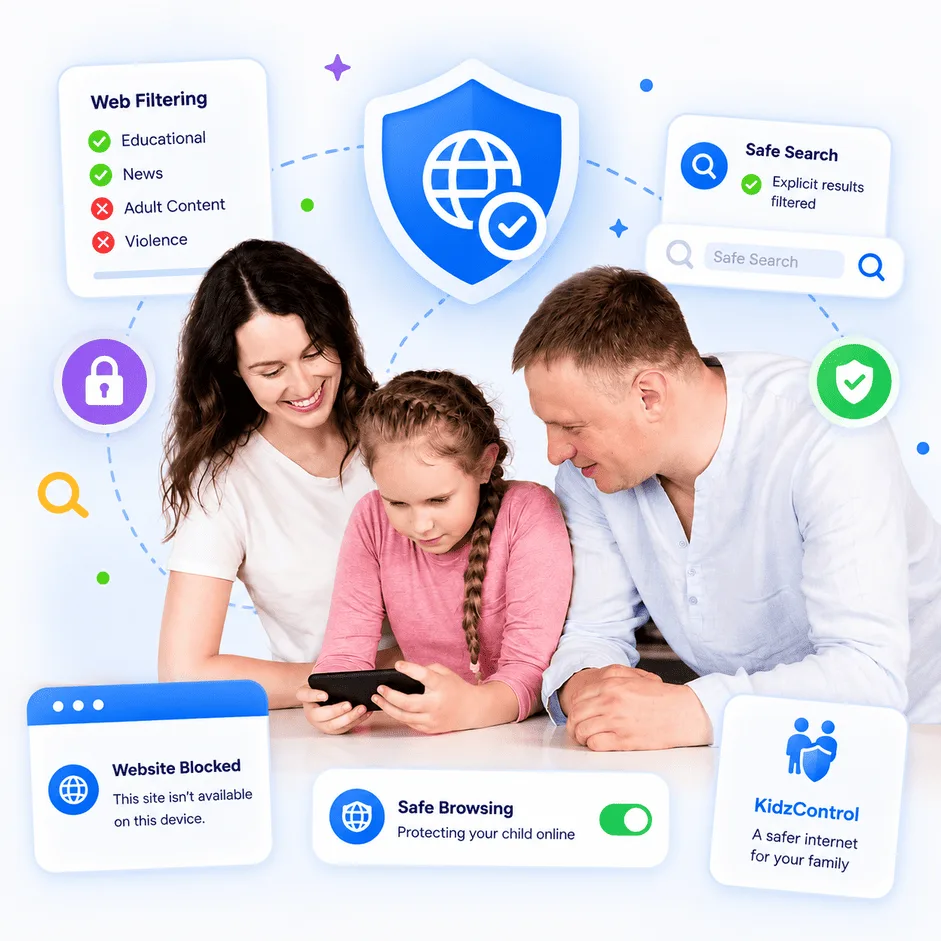
Layers of Protection That Work Together
No single Android setting covers every way a child can access the internet. KidzControl combines multiple layers of protection to close those gaps.
Block Unsafe Sites Across Browsers
KidzControl filters adult and unsafe websites across your child’s browsers, including incognito and private tabs.
So switching browsers or opening a private window doesn’t simply turn the protection off.
One layer of protection across the browsers they use.
Filter by Category
You don’t need to manually block millions of websites.
Choose the categories you want to restrict, such as:
- Adult content
- Gambling
- Violence
- Other age-inappropriate content
KidzControl provides age-appropriate defaults to help you get started, while still giving you control over what you want to block.
Keep SafeSearch & YouTube Restricted Mode On
KidzControl keeps Google SafeSearch and YouTube Restricted Mode enabled.
That means explicit search results and videos are filtered before they reach your child’s screen.
And because these settings can normally be changed, KidzControl keeps them enforced for you.
Block Any App From Your Phone
Sometimes filtering isn’t enough.
When you want an app completely unavailable, you can block it directly from your parent dashboard.
That includes browsers, individual apps, or even internet access itself when you need to pause it.
You stay in control from your own phone.
Create Your Own Block & Allow Lists
Have a particular website you don’t want your child accessing?
Add it to your custom block list.
Have a school portal or educational website that should always remain available?
Add it to your always-allow list.
Your family. Your rules.
Get Alerts When Content Is Blocked
KidzControl can notify you when it blocks unsafe content.
Not so you can monitor every page your child reads, but so you know the protection is working and can recognize patterns that may be worth discussing.
Technology can protect. Conversations build trust.
Add it to your always-allow list.
Your family. Your rules.
Protection, Not Surveillance
There’s a line we won’t cross, and it’s worth saying plainly. KidzControl is built to keep harmful content away from your child, not to hand you a transcript of everything they read.
We block unsafe sites before they load. We keep the safe-search filters on. We tell you when something’s blocked. What we don’t do is treat your child’s ordinary browsing as something to be watched and reported on. Safety and snooping are different jobs, and we only do the first one.
That matters for your child too. A kid who knows the app is there to keep the bad stuff out will accept it far more easily than one who feels followed. Openness is the whole point.
How to Block Adult Websites on Android, Honestly
If you’ve searched this before, you’ve probably been promised a single magic setting. Here’s the honest version: on Android, no one setting blocks everything, and anyone who tells you otherwise is selling something. The reliable approach is a few layers, each covering a gap the others leave.
Layer 1 — Turn On SafeSearch & Restricted Mode
Free and worth ten minutes. The catch is that SafeSearch only cleans up Google search results. It won’t stop a directly opened site, other search engines, or links from apps and feeds. Good first step, not a full solution.
Layer 2 — Add a Family DNS Filter
Services like CleanBrowsing Family or OpenDNS FamilyShield block known adult domains across every device on your network, for free. The catch is that it only protects your home Wi-Fi. The moment your child switches to mobile data or a different network, the protection is gone.
Layer 3 — Add Device-Level Protection
This is the layer that holds up on mobile data, in a second browser, and in a private tab, because it lives on the device instead of the network. This is what KidzControl does: it filters unsafe sites across browsers, keeps SafeSearch and YouTube locked, and lets you block any browser or app outright from your phone.
Here’s the honest ceiling, because you deserve it. No filter on any platform is perfect, and a determined teenager with enough time can challenge any tool. That’s exactly why KidzControl also lets you block VPN apps and pause internet access, and why we always come back to the same point: the strongest protection is a good filter plus an ongoing conversation, not a filter alone.
- How It Works
Set Up Safer Browsing in Minutes
Connect Your Child's Device
Install KidzControl on your child's Android device and connect it to your family account.
Choose What to Block
Select age-appropriate content categories and customize your block and allow lists.
Lock the Important Settings
Keep SafeSearch and YouTube Restricted Mode enabled and block apps you don't want your child using.
Stay Informed
Get alerts when unsafe content is blocked and adjust your family's settings whenever you need to.
Connect Your Child's Device
Install KidzControl on your child's Android device and connect it to your family account.
Choose What to Block
Select age-appropriate content categories and customize your block and allow lists.
Lock the Important Settings
Keep SafeSearch and YouTube Restricted Mode enabled and block apps you don't want your child using.
Stay Informed
Get alerts when unsafe content is blocked and adjust your family's settings whenever you need to.
Simple Pricing
Everything Included. No Hidden Fees. One subscription gives you access to every feature, so you never have to upgrade later. Try every feature during your free trial. Cancel whenever you want.
- FAQs
Your Questions, Answered
Does KidzControl block adult websites in Incognito mode?
Yes. KidzControl filters unsafe websites across your child’s browsers, including incognito and private tabs.
You can also block a browser entirely from your parent dashboard.
Can my child bypass the filter with a VPN?
VPNs can challenge web filters, which is why KidzControl lets you block VPN apps from your dashboard.
You can also pause internet access when needed.
No filtering system can promise to be completely impossible to bypass, so we recommend combining technology with an open conversation about online safety.
What types of content can I block?
KidzControl supports category-based filtering with age-appropriate defaults.
Categories include adult content, gambling, violence, and other types of unsafe or inappropriate content.
You can also create your own block and always-allow lists.
Does KidzControl force SafeSearch?
Yes. KidzControl keeps Google SafeSearch and YouTube Restricted Mode enabled so explicit search results and videos are filtered before they reach your child.
Is KidzControl spying on my child's browsing?
No. KidzControl is designed to block harmful content and notify you when something is blocked. It isn’t designed to create a report of your child’s ordinary browsing activity.
Protection and surveillance are different things.
Can I block an entire browser or app?
Yes. You can block any app directly from your parent dashboard, including browsers. You can also pause internet access when necessary.
Is Family Link enough for web filtering?
Family Link can be a useful starting point, particularly for younger children, but its web-filtering capabilities are more limited.
KidzControl adds category-based filtering across browsers, incognito/private-tab protection, and the ability to block apps directly.
The source supports this comparison and positioning.
Give Your Child a Safer Place to Explore
Keep adult and unsafe content out of reach, lock SafeSearch in place, and manage apps directly from your phone.
7-Day Free Trial • No Credit Card Required